
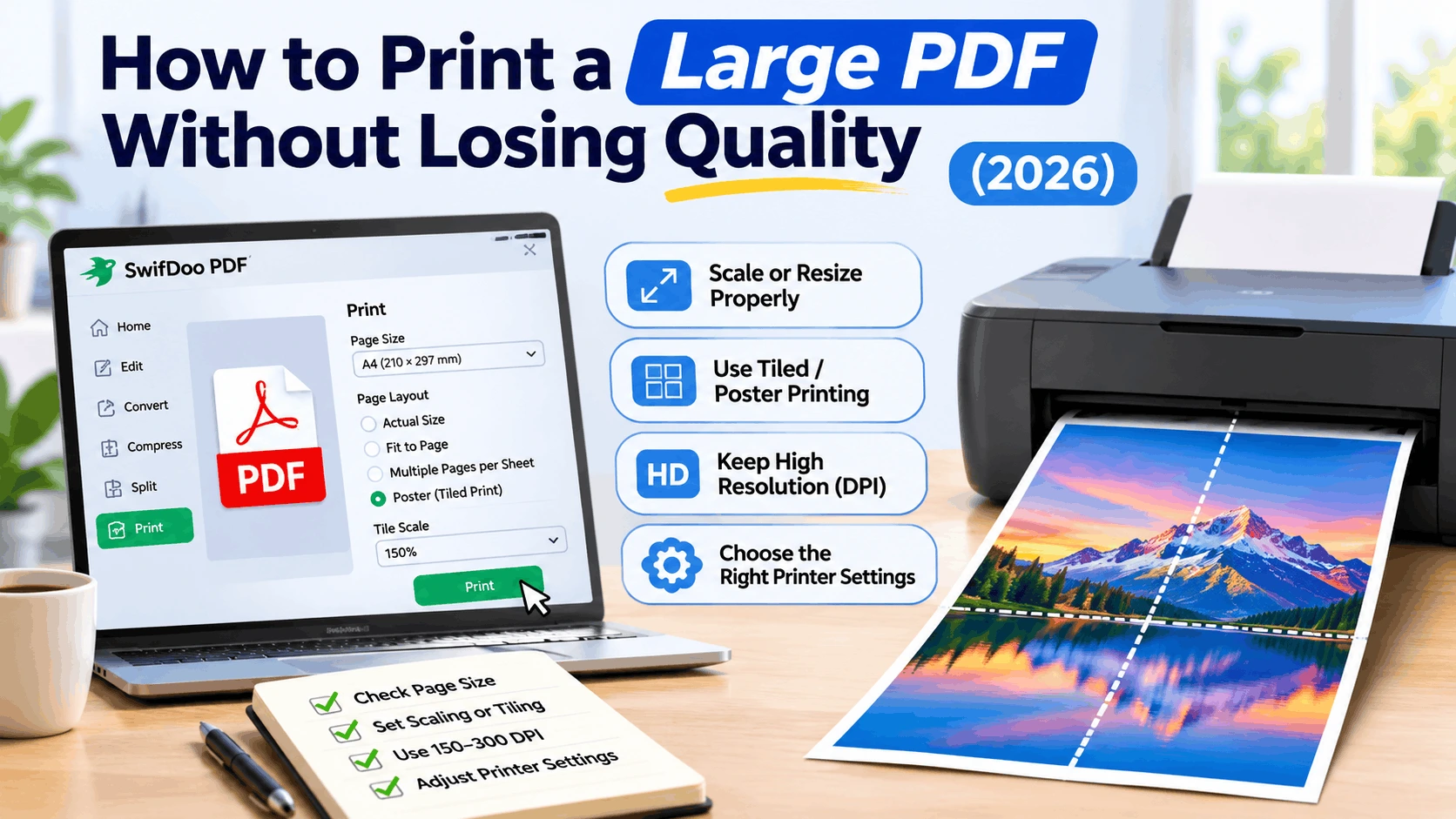

Printing a large PDF can be more complicated than printing an ordinary document. A poster, architectural drawing, research report, brochure, map, or presentation may be much larger than standard A4 or Letter paper. If you simply click Print, the result may be unexpectedly small, parts of the document may be cut off, or images and text may appear less sharp than they do on screen.
The good news is that most of these problems come from print settings rather than the PDF format itself. By checking the document size, choosing an appropriate scaling method, using tiled printing when necessary, and paying attention to image resolution, you can print an oversized PDF while keeping its important details readable.
Why Is Printing a Large PDF Different?
A PDF page has its own dimensions, which may be much larger than the paper loaded into your printer. For example, a poster might be designed for A2 or A1 paper while a home printer only accepts A4 or Letter sheets. If the software is told to fit the entire page onto one sheet, it has to shrink the content. The document is not necessarily losing information, but the printed text, charts, and images can become too small for practical use.
There is another issue: a PDF can also be large because it contains many pages or high-resolution images. A file with hundreds of pages or complex graphics can place a heavy processing load on a printer. In such cases, preparing the file before printing may make the print job more reliable.
1. Check the Original PDF Page Size
Before changing anything, find out how large the PDF page is intended to be. Page dimensions are different from file size. A 2 MB PDF can have a very large physical page, while a 100 MB PDF might contain many ordinary-sized pages.
If the document was designed for a particular paper size, try to preserve that intended size whenever possible. This is especially important for technical drawings, posters, forms, and documents where measurements matter.
2. Decide Whether to Scale or Tile the PDF
There are two common ways to print an oversized PDF. The first is to scale it down so the complete page fits on one sheet. The second is to use tiled or poster printing, which divides one large page across several smaller sheets.
Scaling is useful when readability is still acceptable at the smaller size. Tiling is usually more suitable when you need the final print to remain close to the original dimensions. After printing, the individual sheets can be trimmed and joined together.
3. Use Poster or Tiled Printing for Oversized Pages
Poster printing, sometimes called tiled printing, divides a large PDF page into multiple printable areas. Instead of reducing an A1 poster to fit on one A4 sheet, the software might distribute it over several A4 sheets. You can then assemble the sheets to reproduce a larger physical page.
When available, check the tile scale, overlap, cut marks, and labels. Tile scale controls the overall printed size. A higher percentage produces a larger final result but requires more sheets. A small overlap between adjacent sheets gives you a shared area for alignment, while cut marks can make trimming easier. Labels are useful when a large poster produces many individual pages.
Always check the preview before printing. A preview can reveal an unexpected page count, missing margins, or an awkward page break before you waste paper and ink.
4. Pay Attention to Image Resolution
Print quality depends heavily on the quality of the source content. Text and vector graphics can generally be enlarged cleanly, but raster images have a fixed amount of detail. If a photograph or scanned image has a low resolution, enlarging it will not create additional detail and may make pixels more visible.
For many everyday print projects, 150 to 300 DPI is a useful reference range, with around 300 DPI often used when sharper detail is important. The appropriate resolution can vary depending on the type of document, printer, viewing distance, and original image. For a large poster viewed from several feet away, the practical requirement may differ from a small document intended for close reading.
5. Select Suitable Printer Settings
The printer itself can affect the final result. Check that the paper size, orientation, print quality, and color settings match your project. If fine text or detailed images are important, avoid Draft or Economy mode when possible. A higher-quality mode may take longer and use more ink or toner, but it can produce cleaner output.
Also check the printable area. Many printers cannot print all the way to the physical edge of the paper. If your design reaches the edge, the printer may leave a white border or crop part of the content. Borderless printing can help when supported by both the printer and the selected paper size.
6. Avoid Excessive PDF Compression
Compression can be useful when a PDF is too large for a printer to process comfortably, but smaller does not automatically mean better. Aggressive image compression may remove detail that becomes noticeable when the document is printed at a larger size.
If you need to reduce the file size, keep the original PDF as a backup and create a separate print-ready copy. Review the compressed version at a reasonable zoom level before sending it to the printer.
How to Print a Large PDF with SwifDoo PDF
SwifDoo PDF is a PDF editor and reader that includes tools for editing, conversion, compression, merging, splitting, signing, and protection. For large PDF print jobs, it can be useful for preparing the document before it reaches the printer. The software supports compressing a PDF, splitting a long document into smaller sections, and working with pages before printing.
The following workflow keeps the original article’s SwifDoo PDF section structure while presenting the steps in a practical way.
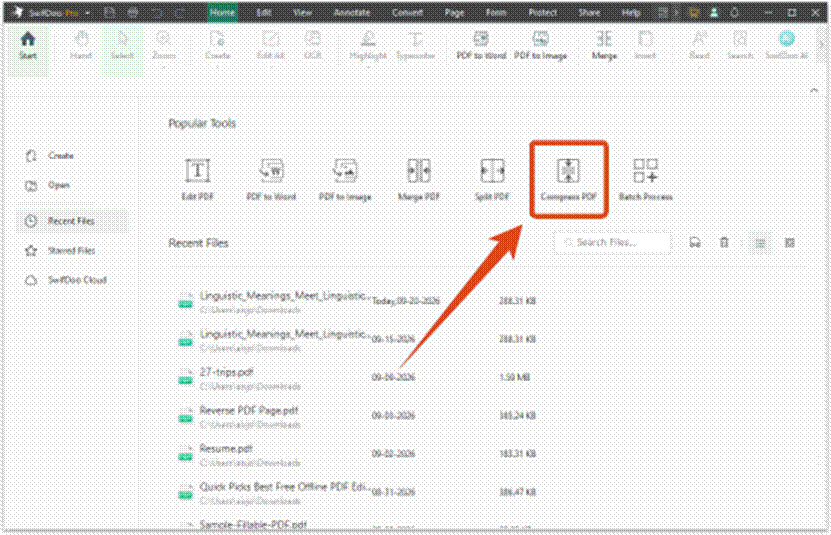
Step 1: Compress Your Large PDF
If a PDF is unusually large because of high-resolution images or a large amount of content, compressing it before printing may reduce the processing load. Open SwifDoo PDF, choose Compress PDF, and import the document. You can select a compression level or adjust image quality and resolution when those options are available. Choose settings carefully because excessive compression can affect printed detail.
After compression, compare the new file with the original. Keep the original version if you may need the highest-quality source later.
Step 2: Split a Long PDF When Necessary
If the problem is the number of pages rather than the physical size of each page, splitting the document can make the print job easier to manage. Open the Split PDF tool in SwifDoo PDF, import the file, and choose a method such as page ranges, equal sections, or groups of pages. Save the resulting files and print them separately.
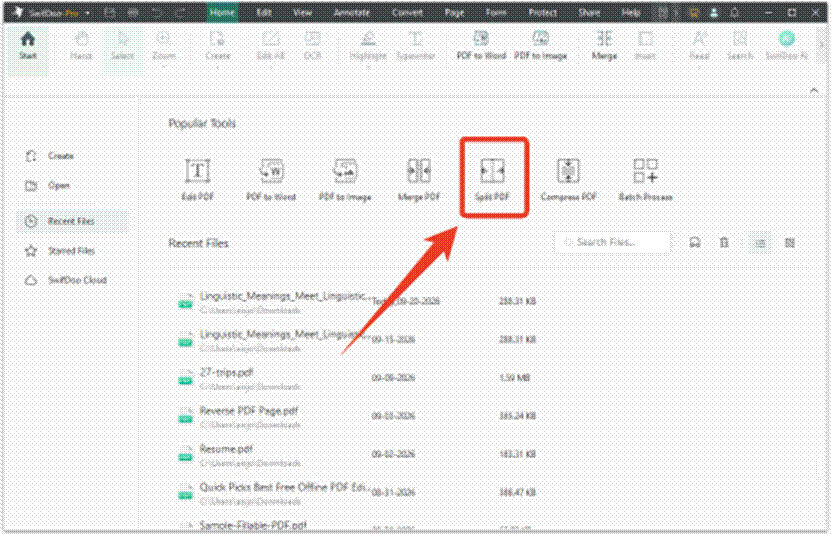
This approach can be useful when a very long print job causes delays or processing errors. It also makes it easier to print only selected sections of a larger document.
Step 3: Print the PDF on Multiple Pages
Once your PDF file is ready, open it in SwifDoo PDF and select “Print.” Under the “Page Sizing & Handling” options, choose “Multiple” to display multiple PDF pages on a single sheet. Adjust the “Tile scale” according to your desired final dimensions.
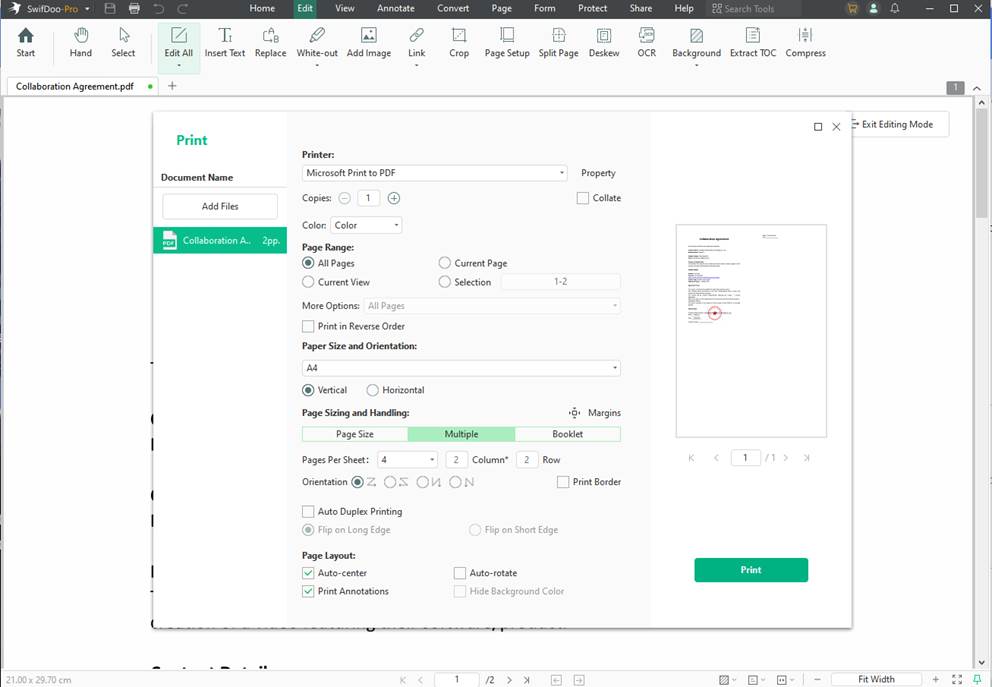
A higher tile scale creates a larger physical result but also increases the number of sheets. Use the print preview to check how the pages will be arranged before starting the job. If the preview shows more pages than expected, reduce the scale. If the document becomes too small to read, increase it.
For documents that need to be assembled, check the page boundaries carefully. Keeping a small shared area between neighboring sheets can make alignment easier during assembly.
Frequently Asked Questions
Can I print a large PDF on regular A4 paper?
Yes. You can either shrink the PDF to fit one A4 sheet or use tiled printing to spread the original page over multiple A4 sheets.
How do I print a PDF that is too large for my printer?
If the physical page is too large, use poster or tiled printing. If the file itself is unusually large, consider compressing it or splitting a long document into smaller sections before printing.
Will enlarging a PDF reduce its quality?
It depends on the content. Vector text and graphics can often scale well, while low-resolution raster images may become pixelated when enlarged.
What DPI should I use for printing a PDF?
Around 300 DPI is commonly used as a reference for sharp everyday prints, while 150 DPI may be sufficient for less detailed material. The ideal value depends on the document and printing method.
Why is my large PDF printing blurry?
Check the resolution of embedded images, the PDF’s compression settings, and the printer’s quality mode. A low-resolution source image cannot become detailed simply by increasing the print scale.
Can SwifDoo PDF prepare a large PDF before printing?
Yes. SwifDoo PDF provides compression and splitting tools that can help prepare large files for printing, while its print workflow can be used to configure the page layout.
Final Thoughts
For very large or complex files, preparing the PDF first can also help prevent printer errors. SwifDoo PDF provides compression and splitting tools for this preparation stage and can be used as part of the overall printing workflow.
Finally, always preview the print layout and, when the project matters, run a small test first. A few minutes spent checking scale, resolution, margins, and page alignment can prevent a large amount of wasted paper and ensure that the final PDF print remains clear and usable.