
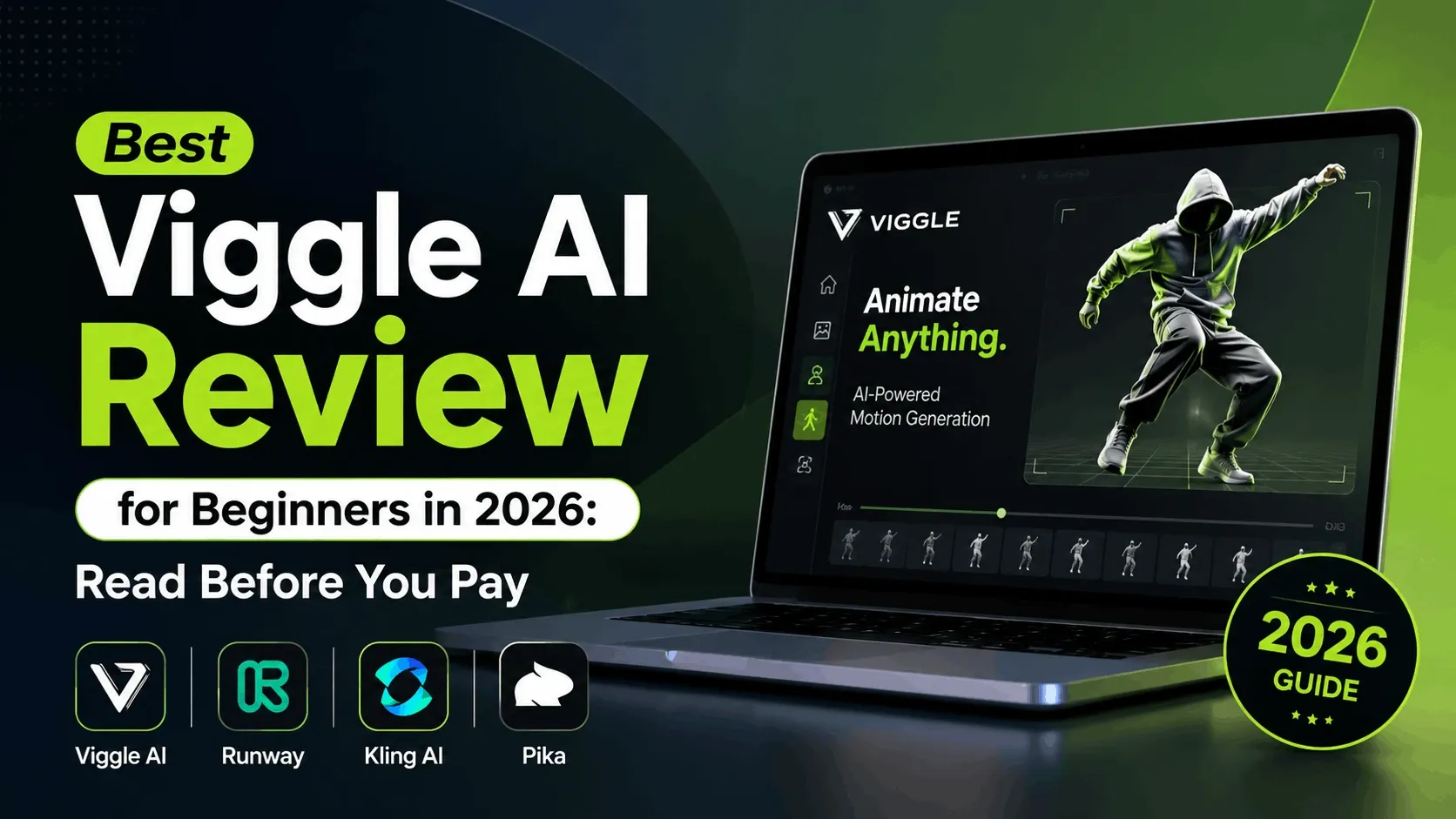

You have seen the clips. A single photo turns into a character that dances, struts, or busts a move it has no business knowing. Half of TikTok runs on this trick right now, and most of it traces back to one tool. This is an honest Viggle AI review for beginners, written for anyone who wants the truth before they sign up.
No hype, no fluff. Just what the tool does well, where it stumbles, and whether it deserves a spot in your workflow.
What Is Viggle AI?
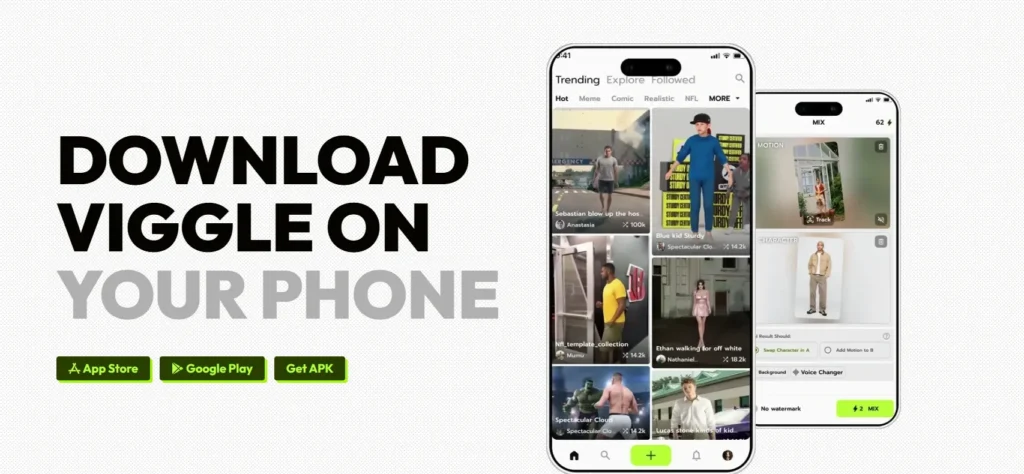
Viggle is a character animation tool. You give it a still image, you give it a motion, and it stitches the two together into a short video. The character moves like it is alive, arms and legs included, not just a face wobbling on a frozen body.
Under the hood sits a model called JST-1, a video-3D foundation model with a basic grasp of physics. That physics awareness is the reason limbs bend like limbs instead of sliding around like wet noodles.
The company has real credibility behind it. Founded in 2022 by Hang Chu, a computer-vision PhD with past research stints at Google and NVIDIA, Viggle raised a $19M Series A led by Andreessen Horowitz in 2024 and grew a Discord community of more than four million members. So this is not a weekend side project that vanishes next quarter.
Why Viggle AI Wins: Current Character Animation Bottlenecks
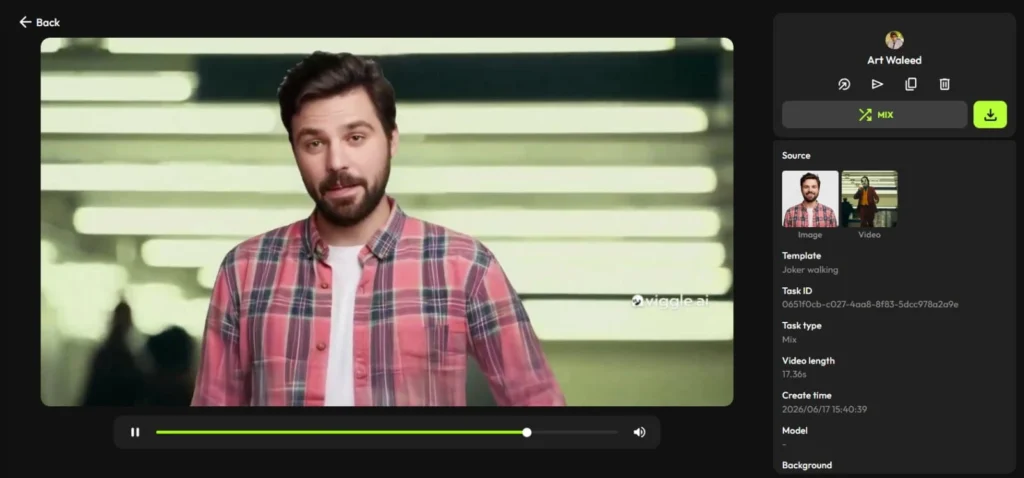
Generic text-to-video tools are brilliant at conjuring landscapes and dreamy scenes. They are far less reliable when you hand them a specific character and say “make this exact person move.” That gap is where Viggle for beginners earns its reputation. Here is the breakdown.
Breaking Spatial Coherence
Most generative tools struggle to keep a body anatomically sane during motion. A leg drifts, an arm clips through the torso, fingers multiply like a horror movie. Viggle’s 3D-based approach tracks the body in space, so the character holds its shape far better across a full dance or stunt.
Temporal Consistency Failures
A character that looks great in frame one and like a different person by frame fifty is useless for content. Viggle maps facial structure and body motion frame by frame, which keeps your character recognisable from the first second to the last. That consistency is what makes batch content and repeat uploads practical.
Limitations in Cinematic Control
Type a prompt into a general engine and you mostly cross your fingers. Viggle flips the logic. You choose the exact motion from a library of thousands of templates, or you upload your own reference clip. You direct the movement instead of begging the model to guess it.
Prompt Intent vs. Engine Output
The classic AI frustration is asking for one thing and getting another. Because Viggle leans on visual motion references rather than vague text, the distance between what you wanted and what you got shrinks dramatically. You point at a dance, and your character does that dance.
How to Use Viggle AI: A Beginner Tutorial
Can beginners use Viggle AI? Comfortably, yes. If you can upload a photo, you already have the hardest skill required. There is no rigging, no keyframing, and no animation degree involved.
Here is the simple version of how to use Viggle AI from a standing start:
- Pick your method. Use Mix to drop your character into an existing motion video, or Move to animate an image while keeping its background intact.
- Upload your inputs. Add a clear, front-facing character image. For best results, use good lighting and a clean background. Add a motion video or choose a template.
- Generate and export. The model produces a draft, usually in under a minute. Review it, tweak if needed, then download.
That is the entire Viggle AI tutorial for beginners. The reason the platform exploded is exactly this short learning curve.
Viggle AI Features Worth Knowing
The Viggle AI features list goes well beyond a single dancing photo. The standouts:
- Mix blends a character image into a reference motion video, matching pose and timing.
- Move animates a still image while preserving the original background.
- Multi-Track handles up to seven characters or objects in one scene, each keeping its own identity.
- Rap and Mic add lip-sync and voice-driven motion for music and talking-head content.
- Template library offers thousands of motions, from gentle gestures to full choreography.
For text-driven scenes, Viggle also taps integrated models like Veo and Seedream, which widens the range of styles you can produce from a prompt alone. You can read the full feature set on the official Viggle site.
Is Viggle AI Free? Pricing Explained
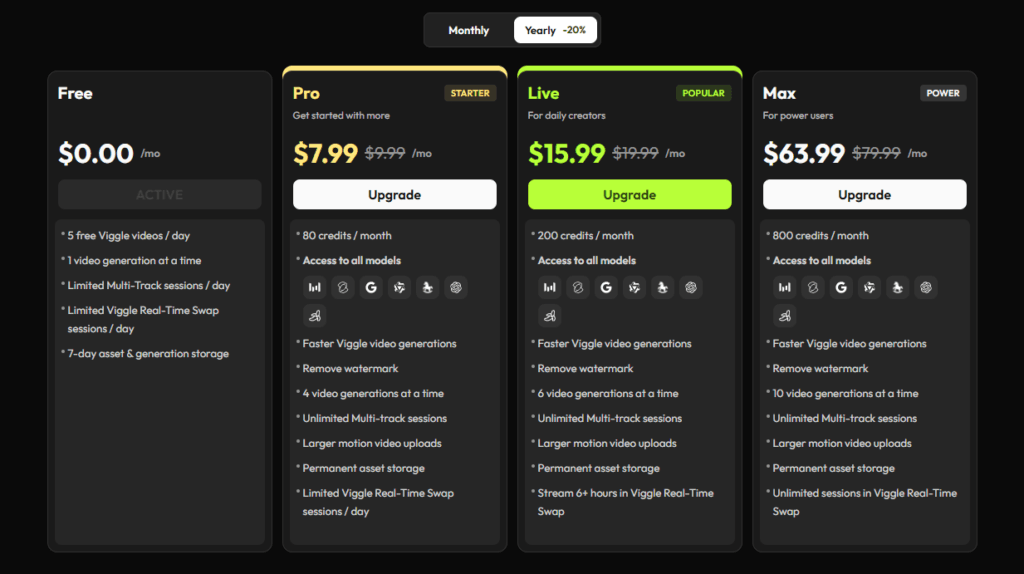
Yes, there is a genuinely usable free plan, which is rare in this category. So is Viggle AI free in practice? For casual creators, mostly yes.
The free tier gives you five relaxed-mode videos per day, each carrying a watermark, plus 15-day asset storage and two generations running at once. That is enough to test the tool properly and post the occasional clip. No credit card required to start.
Paid plans run on credits. One credit covers up to 15 seconds of watermark-free animation, and heavier commands such as Rap cost more per clip. Subscription credits refresh every month, while top-up credits you buy separately roll over.
Here is how the Viggle AI pricing breaks down:
| Plan | Monthly | Annual (est.)* | Credits / month | Approx. videos / day | What it unlocks |
|---|---|---|---|---|---|
| Free | $0 | $0 | Daily quota only | ~5 (relaxed mode) | Watermarked clips, 15-day storage, 2 concurrent tasks |
| Pro | $4.99 | ≈ $50 / year | 80 | ~10 | Watermark removal, long-term storage, faster processing |
| Live | $9.99 | ≈ $100 / year | 200 | ~25 | Everything in Pro plus priority queue access |
| Max | $31.99 | ≈ $319 / year | 800 | ~80 | Everything in Live plus the fastest processing speeds |
*Annual figures are estimated at roughly 15 to 20 percent off monthly billing. Confirm the exact yearly totals on Viggle’s own page.
For most beginners, the free tier answers the “should I pay” question before you spend a cent. Light creators who simply want the watermark gone do fine on Pro. Daily posters and small brands lean toward Live for the priority queue, and Max suits genuine high-volume work. Prices and plan names shift over time, so confirm the current numbers on the Viggle pricing page before you buy, and read the commercial-use terms if you plan to monetise your videos.
Viggle AI Pros and Cons
No tool is flawless, so here is the balanced Viggle AI pros and cons summary.
Pros
- The easiest character animation tool a beginner can pick up.
- Physics-aware motion that looks natural, not robotic.
- A real free tier plus low-cost paid plans.
- Strong character consistency for repeatable content.
Cons
- Clips run short, generally under fifteen seconds.
- The output video is silent, so you add audio in a separate video editor.
- Fine detail on complex clothing and busy multi-character scenes can wobble.
- It is purpose-built for character motion, not broad cinematic scenes.
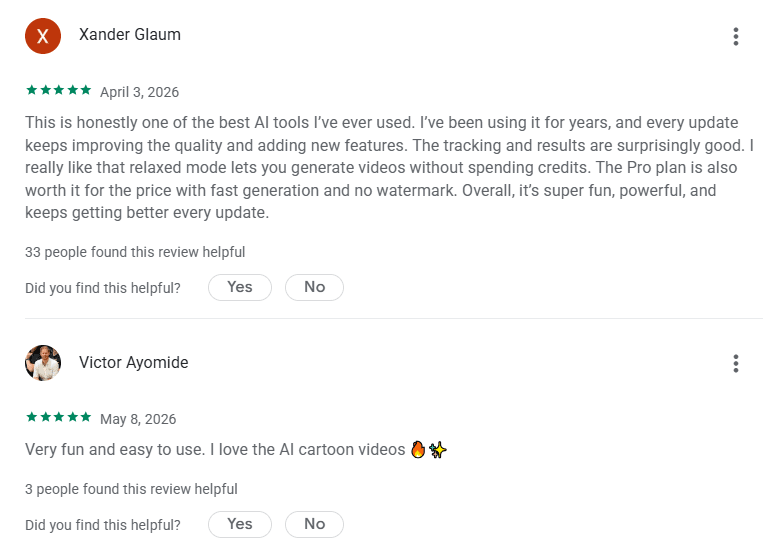
Review on Play Store
Comparing the Best Viggle AI Alternatives in 2026
Viggle is excellent at one job. If you need 4K, long clips, or full scene generation, you will want to weigh the options below. The broader lineup of AI video tools we have tested is worth a look too. The table maps the realistic picks for a beginner, with figures that shift over time, so always verify on each official site.
| Platform | Key Features | Best Use Cases | Pricing (approx., monthly) | Free Plan | Pros & Cons |
|---|---|---|---|---|---|
| Viggle AI | Mix, Move, Multi-Track (up to 7), JST-1 physics, large template library | Character memes, dance clips, social shorts | Free; paid from around $5 | ~5 videos/day, watermark, short-term storage | + Easiest for beginners, lifelike motion / − short, silent clips |
| Runway | Gen-4.5, text/image/video, motion brush, multi-model access | Cinematic and commercial video | Standard around $12–15 | 125 one-time credits, no refresh | + Pro-grade suite / − pricier, steeper to learn |
| Kling AI | Text and image to video, longer clips, native audio | Photorealistic motion, longer scenes | Standard around $7–10 | 66 credits daily, refreshes | + Generous free credits, long clips / − burns credits fast |
| Pika | Effects, object swaps, lip-sync, stylised transforms | Budget creative and social effects | Standard around $8 | 80 credits/month, no watermark | + Cheap and fun / − commercial rights need a higher tier |
For raw simplicity, Viggle remains the friendliest pick and arguably the best AI video generator for beginners who care specifically about animating a character. For cinematic ambition, Runway pulls ahead. If you want long, realistic clips on a budget, Kling makes a strong case. And creators who eventually need higher-fidelity, batch-ready output sometimes graduate to a more professional render tool.
Is Viggle AI Worth It?
So, is Viggle AI worth it? For its specific lane, the answer is a confident yes.
If your goal is fast, character-driven clips for TikTok, Reels, or Shorts, few tools get you there with less friction. The free tier means you risk nothing but fifteen minutes to find out if it fits your style.
It will not replace a full animation studio, and it is not pretending to. But for memes, fan edits, marketing mascots, and viral trends, Viggle does the hard part for you and gets out of the way. Start free, animate a photo, and let your output decide.